
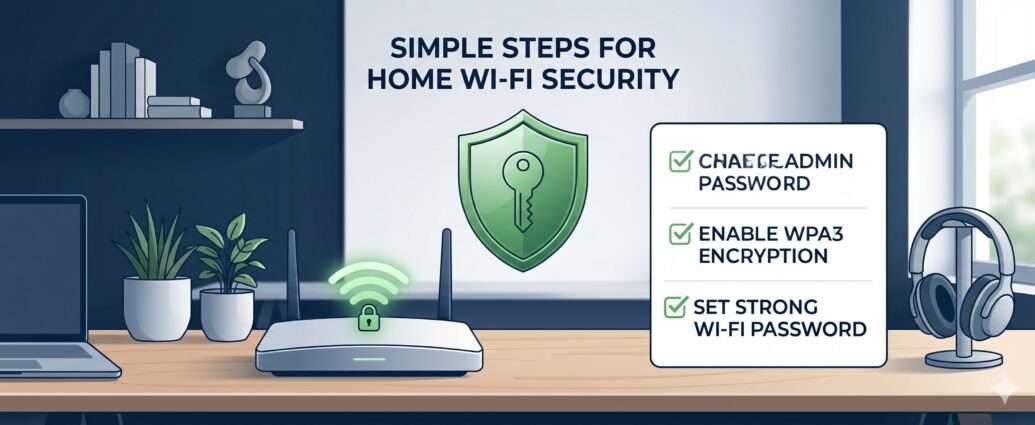
If you’re searching for how to secure your Wi-Fi router in 10 minutes, you’re already ahead of most users. The truth is, your Wi-Fi router is the front door to your digital life. It connects your phone, laptop, smart TV, CCTV cameras, and even banking apps.
However, most people:
- Never change default passwords
- Use outdated security settings
- Ignore firmware updates
As a result, their network becomes vulnerable to:
- Unauthorized access
- Data theft
- Malware attacks
- Bandwidth misuse
👉 The good news? You can secure your Wi-Fi router in 10 minutes if you follow the correct steps.
This guide is designed to be:
- Beginner-friendly
- Step-by-step actionable
- Applicable to all major router brands
- Optimized for real-world usage
Step 1: Access Your Router Settings (Control Panel)
Before you secure anything, you need access to your router dashboard.
🔹 How to Log In
- Connect to your Wi-Fi network
- Open browser (Chrome, Edge, etc.)
- Enter router IP address:
| Brand | Default IP |
| TP-Link | 192.168.0.1 |
| D-Link | 192.168.1.1 |
| Netgear | 192.168.1.1 |
| ASUS | 192.168.50.1 |
- Enter login credentials
Default Credentials (Common)
| Username | Password |
| admin | admin |
| admin | password |
👉 If you haven’t changed this, your router is already at risk.
Step 2: Change Default Admin Username & Password
This is the most important step.
🔹 Why It Matters
Hackers know default credentials. If unchanged, they can:
- Take control of your router
- Change DNS settings
- Monitor traffic
🔹 How to Change It
- Go to Administration / System Settings
- Find Admin Credentials
- Change both username and password
✅ Strong Password Tips
- Minimum 12 characters
- Use letters + numbers + symbols
- Avoid personal info
Step 3: Change Your Wi-Fi Network Name (SSID)
Your SSID (Wi-Fi name) can reveal sensitive info.
❌ Example (Bad)
- Rahul_Home_WiFi
- TP-Link_1234
✅ Example (Good)
- NetZone_Alpha
- SecureLink_24
🔹 Why Change SSID?
- Prevents easy identification
- Avoids targeted attacks
Step 4: Enable WPA3 or WPA2 Security
Encryption is your network’s defense layer.
🔹 Security Types Explained
| Type | Security Level |
| WEP | Very weak ❌ |
| WPA | Weak ❌ |
| WPA2 | Strong ✅ |
| WPA3 | Very strong 🔥 |
🔹 What You Should Do
👉 Set:
- WPA3 (if available)
- Otherwise WPA2-PSK (AES)
🔹 How to Change
- Go to Wireless Settings
- Select Security Mode
- Choose WPA2/WPA3
Wi-Fi Router Security Levels Comparison (2026)
Understanding different security levels is essential when learning how to secure your Wi-Fi router in 10 minutes, because not all encryption types offer the same protection.
| Security Type | Encryption Standard | Security Level | Risk Level | Recommended Usage |
| Open Network | None | ❌ No Security | 🔴 Very High | Never use (public only) |
| WEP (Wired Equivalent Privacy) | 64/128-bit | ❌ Very Weak | 🔴 Very High | Obsolete, avoid completely |
| WPA (Wi-Fi Protected Access) | TKIP | ⚠️ Weak | 🟠 High | Avoid if possible |
| WPA2 (AES) | AES Encryption | ✅ Strong | 🟡 Medium | Minimum recommended standard |
| WPA2/WPA3 Mixed Mode | AES + SAE | ✅ Very Strong | 🟢 Low | Good for compatibility |
| WPA3 (Latest) | SAE Encryption | 🔥 Maximum Security | 🟢 Very Low | Best option (recommended) |
How to Choose the Right Security Level
- If your router supports WPA3 → Always use WPA3
- If not → Use WPA2 (AES only)
- Never use → WEP or WPA (TKIP)
Pro Insight (Important for Users)
👉 Even the strongest password cannot protect your network if you are using weak encryption like WEP or WPA
👉 Therefore, always combine:
- Strong password
- Latest encryption (WPA2/WPA3)
- Firmware updates
Step 5: Update Router Firmware
Firmware updates fix security vulnerabilities.
🔹 Why It’s Important
Outdated firmware can:
- Expose router to attacks
- Allow unauthorized access
🔹 How to Update
- Go to Firmware Update section
- Click Check for updates
- Install latest version
Step 6: Disable WPS (Wi-Fi Protected Setup)
WPS is convenient but risky.
🔹 Why Disable It
- Easily hackable
- Can bypass password
🔹 How to Disable
- Go to Wireless Settings
- Turn off WPS
Step 7: Limit Device Access (MAC Filtering)
Control who connects to your network.
🔹 How It Works
Every device has a unique MAC address.
🔹 Setup Steps
- Find device MAC address
- Go to MAC Filtering
- Allow only trusted devices
Step 8: Disable Remote Management
Remote access can expose your router.
🔹 What to Do
- Turn OFF remote management
- Allow access only from local network
Step 9: Monitor Connected Devices
Always check who is using your Wi-Fi.
🔹 How
- Open router dashboard
- Go to Connected Devices
- Remove unknown devices
Step 10: Set Up Guest Network
Separate your main network.
🔹 Why
- Protects main devices
- Isolates guest users
🔹 Setup
- Enable Guest Network
- Set different password
Router Brand-Specific Instructions
🔹 TP-Link
- Use Tether App
- Easy interface
- Enable WPA3 easily
🔹 D-Link
- Manual dashboard setup
- Firmware updates important
🔹 Netgear
- Use Nighthawk App
- Strong parental controls
🔹 ASUS
- Advanced security options
- Built-in firewall
Quick 10-Minute Checklist
| Task | Done |
| Change admin password | ✅ |
| Change Wi-Fi password | ✅ |
| Enable WPA2/WPA3 | ✅ |
| Update firmware | ✅ |
| Disable WPS | ✅ |
| Check devices | ✅ |
Common Mistakes to Avoid
- Using weak passwords
- Ignoring updates
- Sharing Wi-Fi publicly
- Not checking devices
Advanced Security Tips (Optional)
- Enable firewall
- Use VPN router
- Disable unused ports
FAQs (AEO + GEO Optimized)
How often should I secure my router?
Every 3–6 months or after firmware updates.
Can someone hack my Wi-Fi easily?
Yes, if security settings are weak.
What is the safest Wi-Fi encryption?
WPA3 is the safest option.
Should I hide my SSID?
Optional, but not necessary if security is strong.
Does changing password stop hackers?
Yes, immediately removes unauthorized access.
Final Thoughts
Learning how to secure your Wi-Fi router in 10 minutes is one of the simplest yet most powerful steps you can take for your digital safety.
👉 A secure router means:
- Safe browsing
- Protected data
- Better performance
Related reading and references
For more context on this topic, these related Technoparadox articles are worth reading next:
- Common Mistakes When Securing Wi-Fi Networks
- Top 10 Cybersecurity Measures Every US Business Must Implement
For broader reference, these external resources add useful background and practical guidance: